Passpoint Reports
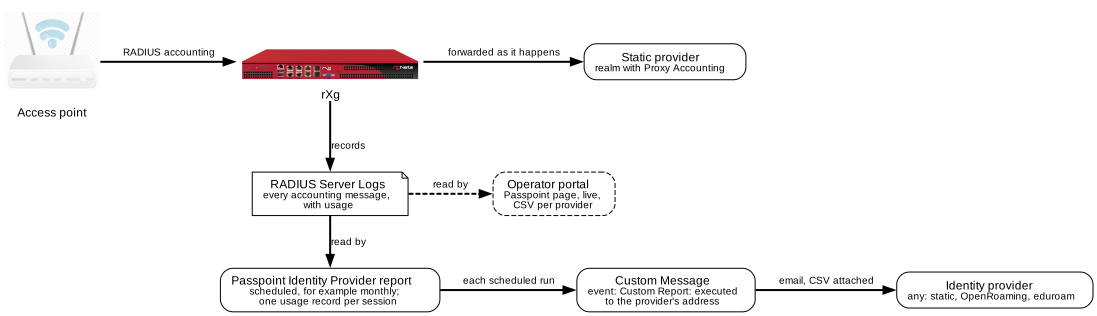
A venue's network that carries Passpoint is an access network provider (ANP). It owes each identity provider an account of how that provider's subscribers used the network: how many sessions, how long, and how much data. On the rXg, that account comes two ways:
- RADIUS accounting, as it happens, for static providers whose realm has Proxy Accounting on. See Accounting.
- Usage reports, sent by email on a schedule, for any provider. Dynamic providers, such as OpenRoaming and eduroam, get no accounting from the rXg, so for them the report is the only account they get.
Read Passpoint first. It covers the setup the reports depend on, above all RADIUS Accounting on the WLAN.
Key points:
- The Passpoint Identity Provider report shows one provider's usage. Its table has one usage record per session, and that table is the CSV the provider gets.
- Give its Identity Provider the provider's name as the Passpoint Venue report shows it, such as
American Bandwidth. The name follows the rXg's configuration, so it keeps up with the provider's realms. After renaming a provider or moving it to another Hotspot WLAN Profile, check its reports.- To send it automatically, make the report recurring, then attach a Custom Message with the event Custom Report: executed and the provider's Recipient Address.
- The config template Example: 10 Passpoint Identity Provider Report Config sets both up.
- Each report counts only usage inside its period, so back-to-back reports never count the same usage twice.
- The Passpoint Operator report also counts each access point's clients and the most it had at once, and every report shows how much of its data moved at a good SNR. See Access Points and Signal.
- The operator portal's Passpoint page shows the same figures live, with a CSV of each provider's usage records.
The Reports
Three custom report types (Archives >> Reports >> Custom Reports) cover Passpoint and OpenRoaming. Each draws a summary above its table and can be downloaded as a PDF. The Excel, CSV and XML downloads carry the summary too: every section of it after the table, each on a sheet of its own in Excel. The Passpoint Identity Provider report's CSV and XML keep only its usage records, for the provider's systems; its Excel file adds the summary.
| Report | Written for | One table row per | Summary above the table |
|---|---|---|---|
| Passpoint Venue | The venue owner | Identity provider | Devices, data, hours and logins; data over time; the providers, with their signal and data at good SNR; the busiest areas |
| Passpoint Operator | Whoever runs the network | Access point | All of the venue report, plus logins per realm, failed logins, why sessions ended, bands, channel use, reboots, the busiest access point and each access point's peak |
| Passpoint Identity Provider | One identity provider | Session | That provider's figures, with its signal and data at good SNR, why its logins failed, why its sessions ended, and where its subscribers used the network |
The Identity Provider report takes one setting the others don't: Identity Provider, which appears under the report type once that type is chosen. It suggests the providers this rXg knows. Give it either of these, or several separated by commas:
- The provider's name as the Venue report shows it, such as
American BandwidthorGoogle. Names come from the identity providers in the Hotspot WLAN Profiles, from a list of well-known OpenRoaming providers, or from the mobile network a SIM login names. A realm that none of these names goes by the realm itself. - A realm, such as
wi-das.com. A realm also takes its subdomains, sowi-das.comtakeseu.wi-das.com. Give a provider's own realm, never a domain other providers share:openroaming.netwould takesamsung.openroaming.netand every other provider under it.
Important: Give the provider's name. A name follows the rXg's configuration: it takes every realm listed under that provider in a Hotspot WLAN Profile, including realms added later, and an outer identity with no realm, such as
Wi-DAS, when the provider's other logins came through the same RADIUS realm in the same period, and no other provider's did (see Limits). A list of realms takes only what was typed, and misses identities nobody listed. After you rename a provider or move it to another Hotspot WLAN Profile, check its reports: a report that still gives the old name finds nothing, and sends the provider an empty file.
Only the matching sessions, logins and failures appear in the report. Before you schedule it, run it once by hand and compare its sessions with the provider's row in the Passpoint Venue report over the same period. They should match. No sessions at all usually means a typo.
Usage Records
Each row of the Identity Provider report is one session's usage record:
| Column | What it holds |
|---|---|
| Session ID | The Acct-Session-Id the access point gave the session. The provider sees the same ID in any accounting it receives |
| User Name | The outer identity the phone sent, often anonymous@ and the realm |
| Chargeable-User-Identity | The provider's own ID for the subscriber (RFC 4372), when the accounting carried one. Some providers send none; see Limits |
| Device MAC | The device's MAC address, the Calling-Station-Id |
| Started, Last Update | When the session began, and its last accounting message in the period, in ISO 8601 with the rXg's time zone |
| Complete | Yes when the session's Stop arrived in the period |
| Seconds, Downloaded, Uploaded | Time connected and bytes moved inside the period |
| Access Point, Area, SSID | Where the session was |
| Ended By | The Acct-Terminate-Cause of a complete session, such as User-Request |
Here is how the figures are counted:
- Only usage inside the period counts. A session that ran across the start or end of the period counts only its share inside it. So a monthly report and the next month's report never count the same bytes twice.
- Usage counts when the access point reports it. Access points on 5.1 firmware send only Start and Stop unless the provider asks for Interim-Updates. A session still open at the end of a period then shows its usage in the period its Stop arrives in.
- Resent messages count once. The counters in accounting messages keep rising, so the report takes each session's growth, not the sum of its messages.
- Turn Human readable off on the report to get raw bytes in the CSV, which is what a provider's systems expect.
Access Points and Signal
The Passpoint Operator report's access point table, its Access Point Peaks section and its tiles show how busy each access point was. The figures for every device come from the access points' per-device telemetry, which OpenWiFi access points send each minute. The Passpoint figures come from accounting.
| Measure | What it counts |
|---|---|
| Clients | Every device, on any SSID, that connected to the access point in the period. The Total row counts each device once, however many access points it used |
| Peak Clients, Peak Clients At | The most devices connected to the access point at once, and when. A device that moves between the access point's radios counts once |
| Passpoint Devices, Passpoint Sessions | The Passpoint devices and sessions on the access point in the period |
| Peak Passpoint Devices, Peak Passpoint At | The most Passpoint devices on the access point at once, and when, from their accounting. A device with overlapping sessions counts once |
| Data at Good SNR | The share of the devices' data that moved while their SNR was Good, 25 dB or more. It weighs by data rather than time: each minute's data counts under that minute's SNR |
| Channel Use | The share of time the radio's channel was busy with any signal: the venue's own traffic, other networks or interference. Good is up to 50%, Fair up to 70% |
The summary's Busiest Access Point tile gives the highest peak, with its access point and time, and Access Point Peaks lists the ten access points with the highest peaks. Data at Good SNR also appears for each identity provider in every report, and for each band in the Operator and Identity Provider reports.
How precise a peak is depends on the report's period:
- Over the last two days or so, a peak is exact to the minute. That covers a daily report run the next morning: the rXg keeps each device's per-minute telemetry for 2 days by default.
- Over a longer period, a peak is the most devices seen in one rollup window, the finest the rXg still holds for the whole period: 15 minutes, 30 minutes, an hour, 2 hours or a day. A device that left and another that arrived in the same window both count, so it can read a little high, and the report names the window. To make weekly or monthly peaks exact, keep the
client_metricstable's per-minute data longer with a Database Purger (see Database Purgers), at the cost of more disk space.
Data at good SNR uses the same windows over a longer period, with each window's average SNR.
Sending Reports Automatically
A scheduled report runs on its own, and each run can email itself:
- Create the Passpoint Identity Provider report. Set Identity Provider, set Time to
Last Month, and turn Human readable off. Under Schedule, set Recurring method tomonthlyand Next execution at to the first of next month, for example at 06:00. - Create a Custom Message (Services >> Notifications >> Custom Messages):
- Events: Custom Report: executed.
- Recipient Address: the provider's reporting address.
- Reports: the report above. Format: CSV. Include in body: off, because the usage records can run to thousands of rows.
- From, Subject and Body as you like. The body can name the period with
%executed_report.start_time%and%executed_report.end_time%.
- Wait for the first run, or set Next execution at a few minutes ahead to test. The run appears under the report's executed reports, and the message goes out with that run's CSV attached.
Important: Only a scheduled run sends the message. Running the report by hand never emails the provider, so you can check a report safely.
Give each provider its own report and message. A message with Recipient Address set goes only to that address, not to the Administrative Roles. To keep a copy for yourself, attach a second message for the same event that goes to your role instead.
Config Template
The rXg ships this template as Example: 10 Passpoint Identity Provider Report Config (System >> Backup >> Config Templates). It creates the report and the message from the steps above. Copy it into a new template and change:
- identity_provider: the provider's name as the Passpoint Venue report shows it. See The Reports for why a name rather than realms.
- email_recipient: the provider's reporting address. Until it is a real address, the template fails and changes nothing, so it can't email a made-up address every month.
- name, in three places: one report and one message per provider. Applying the template again updates the same report and message, found by name.
---
CustomReport:
- name: 'Passpoint usage: Example Provider'
  report: passpoint_identity_provider
  identity_provider: American Bandwidth
  graph_time:
    name: Last Month
    range_time: lastmonth
  # Raw bytes and seconds in the CSV, for the provider's systems.
  human_readable: false
  recurring_method: monthly
  next_execution_at: '<%= (Time.zone.now.beginning_of_month.next_month + 6.hours).iso8601 %>'
  note: Monthly usage records for one identity provider, emailed by the message of the same name.

CustomEmail:
- name: 'Passpoint usage: Example Provider'
  # Sent when the report above finishes a scheduled run, with that run attached.
  event: custom_report_executed
  email_recipient: REPLACE WITH THE PROVIDER'S REPORTING ADDRESS
  delivery_method: email
  from: passpoint-reports
  subject: 'Passpoint usage records from %device_option.domain_name%'
  body: |
    <p>Attached are the usage records for your subscribers who joined the Wi-Fi at
    %device_option.domain_name% with Passpoint or OpenRoaming, from
    %executed_report.start_time% to %executed_report.end_time%.</p>
  attachment_format: csv
  include_custom_reports_in_body: false
  custom_reports:
  - 'Passpoint usage: Example Provider'
The shipped example also has comments, and a longer body that explains the columns. Config templates are described in Backup.
The Operator Portal's Passpoint Page
Operator portals built on the FOM template have a Passpoint page. It shows the Passpoint Operator report's figures for the past 24 hours, 7 days or 30 days, read live:
- devices, sessions, data, hours connected, login success, login time and the peak at once;
- data over time, by identity provider;
- each identity provider, with a CSV button that downloads its usage records for the range, in the same columns as the report;
- logins per RADIUS realm, failed logins by reason, why sessions ended, the busiest areas and the bands.
The page appears in the menu when the rXg has an identity provider in a Hotspot WLAN Profile, or a realm with Enable OpenRoaming or Enable eduroam. A portal can turn it off per administrative role with the passpoint module. The page covers every Passpoint realm, so a role limited to some properties, by prefixes in its note, gets neither the page nor its CSV.
A portal duplicated from the FOM template keeps its own copy of the menu, so it shows no Passpoint link until one is added. The page itself works there; it is at /PORTAL/passpoint, where PORTAL is the portal's controller name. To add the link, put this line in the portal's views/_menu.erb, next to Wireless Health:
<% if passpoint_available? %><li class="nav-item <%= nav_item_active_class(:passpoint) %>"><%= link_to _('Passpoint'), { action: :passpoint }, { class: 'nav-link' } %></li><% end %>
Limits
- Dynamic providers' accounting isn't forwarded. For OpenRoaming and eduroam, the rXg answers it itself and records it; see Accounting. The Identity Provider report is how these providers get their usage.
- Chargeable-User-Identity depends on the provider. A provider may return one in its Access-Accept, and the access point then repeats it in accounting. In testing, Google and Samsung sent one without being asked, and OpenRoaming Connect and American Bandwidth sent none. The rXg doesn't ask providers for one yet.
- Settled OpenRoaming isn't supported. Settlement through the WBA needs location and settlement attributes that the rXg doesn't send. Advertise only the settlement-free RCOI; see OpenRoaming.
- Reports can only cover what the logs still hold. A report over a period whose RADIUS Server Logs have been purged shows nothing for it.
- The figures depend on accounting. A WLAN without RADIUS Accounting sends none, and its sessions appear in no report.
- Access points that don't report each device give no Clients count. A controller such as SmartZone reports only how many devices each radio has. Its access points show no Clients, and their Peak Clients comes from those counts: added up each minute, or over a longer period the larger of the busiest radio's highest count and the radios' averages added up. That never counts a device twice, but can read low. Signal and data at good SNR need per-device telemetry too.
- Channel use doesn't separate the venue's own traffic. It counts all busy time on the channel, so a channel kept busy by other networks or interference reads the same as one kept busy by the venue's own devices.
- An outer identity with no realm counts for a provider only beside its other logins. Nothing in the configuration links a RADIUS realm to a Hotspot identity provider, so the rXg learns the link from the report's own period: the provider's logins with a realm, such as
[email protected], that came through the same RADIUS realm. In a period when every login through that RADIUS realm had no realm, such asWi-DASalone, the rXg can't make the link. Nor can it when the same identity with no realm also came through another RADIUS realm. Those sessions then appear in the Venue report under the bare name, such aswi-das, and a report for the provider's name leaves them out. Each period works this out separately, including the earlier period the summary compares with.
Checklist
These repeat the key points of this page.
- The report's type is Passpoint Identity Provider, with the provider's name, as the Venue report shows it, in Identity Provider.
- Run by hand, the report has as many sessions as the provider's row in the Passpoint Venue report, and no other provider's.
- Time is
Last Month, Recurring method ismonthly, Next execution at is set, and Human readable is off. - A Custom Message has the event Custom Report: executed, the provider's Recipient Address, the report, CSV, and Include in body off.
- After the first scheduled run, the run appears under the report, and the provider confirms the email arrived.
- The WLAN has RADIUS Accounting on; see the Passpoint checklist.
- After a provider is renamed or moved to another Hotspot WLAN Profile, its reports still find its sessions.
Further Reading
- OpenRoaming, from the Wireless Broadband Alliance, and its specification draft at the IETF, which requires accounting for every OpenRoaming session.
- RFC 2866: RADIUS accounting, including
Acct-Session-Id, the octet counters andAcct-Terminate-Cause. - RFC 2869: RADIUS extensions, including
Acct-Interim-Intervaland the gigaword counters. - RFC 4372: Chargeable-User-Identity.
- Custom Messages and Custom Reports in this manual.


