LLM
The LLM view enables the operator to configure a cutting-edge retrieval augmented generation (RAG) large language model (LLM) artificially intelligent (AI) feature designed to empower network operators to harness the power of advanced language models within their private networks. By leveraging this innovative technology, operators can revolutionize network operations, enhance customer experiences, and unlock new revenue streams.
LLM Options
The LLM Options scaffold configures the end-user behavior of the LLM feature. It may be useful to think of each LLM Option as a unique chatbot. In a scenario where there are multiple end-user and operator portals, multiple LLM Option records may be created to drive each portal to a unique chatbot experience.

The name field is an arbitrary string descriptor used only for administrative identification. Choose a name that reflects the purpose of the record. This field has no bearing on the configuration or settings determined by this scaffold.
The default checkbox, if checked specifies this LLM Option will be used for all portals without an explicit LLM option defined.
The temperature field is a number between 0 and 1 (0.8 default). Increasing the temperature value will make the model answer more creatively.
The chatbot name field is used to set the name of the chatbot, default is Romeo George.
The chatbot avatar field allows the operator to upload a custom image to be as the chatbots avatar in chatbox window.
The apply guardrails checkbox applies guardrails against harmful, unethical, racist, sexist, toxic, etc. conversations. This is applied after any custom instructions and is enabled by default.
The custom instructions field allows the operator to provide the LLM with a full set of custom system instructions.
The initial greeting field allows the operator to specify a specific greeting the chatbox will use to introduce itself when a user initiates a new chat.
The default llm model drop down is used to specify the default LLM model this LLM will use.
The llm models field allows the operator to select all the models that can be used with this LLM Option.
The admin roles field sets the admin roles that will use this LLM option, selecting any roles here will remove them from being selected in another LLM option.
The operator portal field selects which Operator Portals are assigned to this LLM Option. Note that an admin role match is prioritized over an operator portal match. Associating a record removes it from other options.
The landing portals field sets which splash/landing portals use this LLM option. Associating a record removes it from the other options.
The allow anonymous chats field, if checked allows users to chat via the portal without being logged in with an account.
LLM Workers
The LLM Workers scaffold configures an LLM back-end service that will be used by the chatbots defined by LLM Options. LLM Workers may leverage both local as well as remote GPU resources. The remote GPU resource configuration is intended to be used with a Fleet Manager. An organization might wish to install one or more GPUs into the Fleet Manager and thus have a centralized pool of GPU resources that are shared amongst of a fleet in order to meet cost, power, and cooling budgets at the edge. It is also possible to create LLM Workers that leverage cloud AI systems. We highly recommend that operators deploy their own GPUs to maximize ROI and information security. Tying an LLM Worker to a cloud system is primarily included for the purpose of demonstration.

The name field is an arbitrary string descriptor used only for administrative identification. Choose a name that reflects the purpose of the record. This field has no bearing on the configuration or settings determined by this scaffold.
The adapter field specifies the adapter to be used, Ollama is selected by default.
The run locally checkbox tells the system to run a local server for the specified backend (adapter) and optionally can be made available to specific WAN targets and or policies.
The host field is used to specify the IP or FQDN of the host providing the API interface for the designated backend.
The port field specifies the port to be used for communication.
The timeout field sets the amount of time the system should wait for the LLM worker to respond.
The online checkbox, if checked indicates that the LLM worker is online and ready to process requests, unchecking this field will make the LLM worker unavailable.
The llm model drop down specifies which LLM Model this worker will use by default.
The llm models field specifies which LLM Models this worker is allowed to use.
The use for embeddings field if checked, designates the worker that will be used to generate embeddings for context lookup. Enabling will deactivate embedding for other workers.
LLM Models
The LLM Models scaffold displays the models that are available to the LLM Worker. Use the import models action link on the LLM Worker to bring in the available models and populate this scaffold. This scaffold is primarily for informational purposes. We recommend pulling llama3.1:latest for most purposes, or llama3.1:70b if you have more than 40 GB of VRAM. We recommend pulling nomic-embed-text (or mxbai-embed-large if you have a powerful machine) for embeddings.

The name field is the name of the model as recognized by the LLM Workers running it. This name needs to match the model name this field is not arbitrary.
The url field specifies the URL where the model definition and weights can be downloaded from. When importing models from a worker, this field is typically populated automatically.
The formatter field specifies the prompt formatting style used when sending requests to the LLM Worker. Available options are Mistral and Llama3. The formatter ensures that prompts are structured correctly for the specific model architecture being used.
The context window field sets the maximum number of tokens (words/word pieces) that can be considered when generating a response. Available values are 512, 768, 1K, 2K, 4K, 8K, 16K, 21K, 32K, 65K, 100K, and 128K tokens. The maximum context window is determined by the specific model being used. Setting a larger context window allows for more detailed and comprehensive answers but requires more memory. Default values are automatically assigned based on the model name (e.g., llama3 defaults to 8K, mistral/mixtral defaults to 32K).
The embedding dimensions field specifies the dimensionality of the vector embeddings produced by the model. Supported values are 512, 768, and 1024 dimensions. This field is required when using a model for embeddings and is typically populated automatically when importing models from a worker. The default is 768 if the field is left blank.
The quantization level field indicates the quantization applied to the model weights, which affects the precision and memory requirements. Lower quantization levels (fewer bits per weight) reduce memory usage and can improve inference speed, but may slightly reduce model accuracy. This value is typically set automatically when importing models.
LLM Sources
The LLM Sources scaffold allows operators to upload data sources that are used by the retrieval augmented generation (RAG) system. Documents uploaded to this scaffold are indexed using an embeddings model. Vector similarity search is performed upon the chatbot input to acquire relevant fragments of LLM Sources to provide context to the LLM when generating a chatbot response.
The intended method of use is for the operator to upload a large number of files from their existing dataset. For example, the operator might upload all of the menus for all of the restaurants at a large public venue. Another common use case would be an upload of all of the recommended nearby activities for a hospitality venue. The LLM Sources are unique to each edge. Synchronization of LLM Sources between edges is accomplished using a Fleet Manager.

The name field is an arbitrary string descriptor used only for administrative identification. Choose a name that reflects the purpose of the record. This field has no bearing on the configuration or settings determined by this scaffold.
The llm_remote_data_source if selected, marks this LLM Source as remote, meaning that the rXg is expected to fetch the source data from a remote host.
The frequency selector allows the operator to choose whether to make the llm source get called live, or periodically. If it is called periodically, it will not have access to a specific user's specific query, the way it will if being called live. If this LLM Option is periodic, the remote source will be called periodically and the result will be stored in the LLM Option's source attachment, and a button to manually refresh it will be made available. If this is a Live LLM Source, the query will be accessible from within the parameterization's ERB context as the query variable.
The source field lets you choose the file to upload that will be used as an embeded source.
The visibility field sets which users can access this information, if set to admins only, the source will only be referenced if you are logged in as an admin. Admins and Users allows both admins and client users to receive information from this source, and setting it to anonymous allows any user interacting with the LLM to receive this information regardless of being logged in or not. The anonymous setting should only be used if the client would be interacting with the chatbot without a login sessions, ie from the splash portal.
The request properties are merged with the request properties of the remote llm data source when this data is retrieved.
These request properties can use ERB, and if they do, the user's query will be available in that ERB context as the query variable. Other variables such as client_ip, client_mac, current_account_id, anonymous_user_id, connected_ap_id, current_admin_id will be available if possible.
The path attribute is merged with the base url of the LLM Remote Data Source to determine the URI that will be called. This allows the operator to configure different paths with different query parameters off of one LLM Remote Data Source.
The timeout attribute determines how long the rXg will wait for a response when it tries to query the remote data source.
The frequency field choice determines how often a periodic remote data source is redownloaded.
The cache duration field determines how long an on-demand response is cached for. This works in conjunction with the cache duration unit field.
LLM Remote Data Sources
LLM Remote Data Sources Represent "base" configuration for getting data from remote web servers to use in LLM generated responses. LLM Remote Data Sources contain properties that are used when requesting data from that remote llm source.
The name field is an arbitrary string descriptor used only for administrative identification. Choose a name that reflects the purpose of the record. This field has no bearing on the configuration or settings determined by this scaffold.
The base url field will be combined with the path attribute of a correlated LLM Source. This is intended to give operators significant flexibility when using LLM Remote Data Sources.
The request properties will be merged with the LLM Source's request properties when making the request.
These request properties can use ERB, and if they do, the user's query will be available in that ERB context as the query variable. Other variables such as client_ip, client_mac, current_account_id, anonymous_user_id, connected_ap_id, current_admin_id will be available if possible.
The basic auth username and basic auth password will be included as basic auth if they are present.
LLM Embeddings
The LLM Embeddings scaffold displays all of the indexes that have been created by the embeddings model for the various LLM Sources. This scaffold is intended for informational purposes only.

An entry in the embedding scaffold represents data the LLM can pull from to answer client questions. The source shows where the data is from, updated reflects the last time this information was updated, the llm model used and the dimensionality.
LLM Prompts

This scaffold is a list of all the prompts sent to the LLM from the clients.
LLM Requests

This scaffold is a list of all the prompts sent to the LLM from the clients, it will list which llm model was used, the LLM worker, when the task was started, when it completed, and how long it took to complete the response.
Chats

The chats scaffold is a history of the chats that have been initiated on the system.
LLM MCP Options
The LLM MCP Options scaffold configures the rXg's own Model Context Protocol (MCP) server endpoint at /api/mcp. One record is active at a time and governs which administrators may connect, from which networks, and which tools are advertised to connecting clients. The active record is the source of truth for the MCP controller; checking another record's active box transparently demotes the previously-active record so that exactly one option is in force at any time.
The name field is an arbitrary string descriptor used only for administrative identification. Choose a name that reflects the purpose of the record. This field has no bearing on the configuration or settings determined by this scaffold.
The active checkbox, when checked, designates this record as the singleton governing /api/mcp. Saving an activated record automatically deactivates any other record. Only one option may be active at a time.
The enabled checkbox, when unchecked, suspends the MCP server endpoint while preserving the record for later use. Disabled options reject every connection regardless of the bearer credentials presented.
The llm mcp server drop down designates the on-board MCP server record that represents this rXg's own endpoint. When set, chats associated with this option mint per-chat administrator API Keys for authenticating against the on-board endpoint, rather than expecting an operator-supplied bearer credential on the LlmMcpServer record.
The enable describe model, enable find record, enable get record, enable list records, enable get telemetry, and enable get health notices checkboxes individually toggle each Phase 1 tool's exposure via the MCP tools/list endpoint. An external MCP client cannot discover or invoke a tool whose checkbox is unchecked. These provider-side toggles are independent from the per-server tool toggles described under LLM MCP Server Tools below, which gate the consumer side.
The admins field lists administrators individually authorized to connect to this rXg's MCP server. Either direct membership in this field or membership in a listed admin role grants access.
The admin roles field lists administrator roles whose members are authorized to connect. Any administrator belonging to a listed role is granted access without needing to appear in the admins field individually.
The wan targets field restricts which WAN-side source IP addresses may connect. When at least one WAN target is associated, requests from source IPs outside those targets are refused. When no WAN targets are set, the option permits connections from any source IP that also satisfies the administrator authorization. Loopback connections (originating from 127.0.0.0/8 or ::1) are always permitted; chat-driven calls from this rXg's own LLM workers reach the MCP controller via loopback and are not subject to WAN gating.
The policies field restricts which client policies are permitted to connect from LAN-side source IPs. This field is reserved for future LAN-side MCP usage and may be left empty in typical configurations.
The note field is a free-form text area for the operator's own documentation, such as identifying the deployment or use case that the active option was provisioned for.
LLM MCP Servers
The LLM MCP Servers scaffold registers remote MCP endpoints that this rXg's chat orchestrator is allowed to consume. The on-board MCP server should be registered here as well, so chats associated with the active LLM MCP Option can call tools against this rXg's own data. Additional records may be added to point at other rXgs (for cross-rXg lookups), at an RG Nets Infrastructure deployment, or at any compliant third-party MCP server.
The name field is an arbitrary string descriptor used to identify this MCP server in the admin scaffold and in tool-call audit records. The name is also normalized into a slug that prefixes the server's tool names in the chat orchestrator's catalog. For example, an LLM MCP Server named "Peer rXg" exposes peer_rxg__find_record, preventing collisions between servers that advertise tools with identical names.
The url field specifies the full HTTPS URL of the remote MCP endpoint, typically of the form https://<host>/api/mcp for an rXg-hosted server.
The enabled checkbox, when checked, makes this server available to LLM MCP Options that have associated it. Unchecking the box suspends use of this server without removing the record or its child tool list.
The api key field stores the bearer credential to use when this rXg's chat orchestrator authenticates against the remote MCP server. The value is encrypted at rest and is displayed in the form as a write-only field the existing value is not echoed back, only replaced when a new value is entered. The intended use of this column is the cross-rXg administrator-chat scenario, in which an operator pastes a peer rXg's administrator API Key here so that chats originating from this rXg can authenticate against the peer's MCP server. For all other chat surfaces, the bearer credential is sourced from a per-chat property rather than this field.
Phase 1 limitation the **api key field on this record is not consumed by the chat orchestrator automatically.** When the chat's LLM Option has more than one enabled MCP server (the typical configuration: an on-board server plus one or more remote servers), the orchestrator resolves per-server credentials from
ChatPropertyrows rather than from this column, so an operator-pasted api key here is not used for chat-driven tool calls. The cross-rXg path therefore requires either a per-chatChatPropertyseeded in advance, or a single-enabled-server configuration. See the Phase 1 release notes for the manual workaround and roadmap to make this column authoritative.
The llm options field associates this server with one or more LLM MCP Options. Only chats whose LLM Option matches an associated record will dispatch tool calls to this server.
The llm mcp server tools subform displays the tools currently advertised by this server, populated automatically by the chat orchestrator on first contact. See the next section for the per-tool toggle behavior.
LLM MCP Server Tools
The LLM MCP Server Tools subform, embedded inside the LLM MCP Server form, displays the set of tools currently advertised by an LLM MCP Server as discovered through the remote server's tools/list response. The chat orchestrator refreshes these rows on every successful discovery, so the form reflects what the remote is presently exposing.
The name field is the tool's identifier as reported by the remote server. The field is read-only; operators cannot create or rename tools through this form.
The description field is the tool's free-form description as reported by the remote. The field is read-only and is refreshed by the discovery loop whenever the remote server modifies its advertised description.
The enabled checkbox is the only operator-controlled column. Unchecking it suppresses the tool from this rXg's chat orchestrator's catalog without affecting tool exposure at the remote. A disabled tool remains visible to other MCP clients connecting directly to the same remote server.
Rows on this scaffold cannot be created or deleted by the operator. The discovery loop owns the row lifecycle. Tools no longer advertised by the remote become orphan rows that the operator may leave in place their enabled state is harmless once the tool is gone and the discovery loop will reinstate them automatically if the remote re-advertises the tool name.
LLM Tool Calls
The LLM Tool Calls scaffold is an audit log of every MCP tool invocation that traversed this rXg's chat orchestrator, including calls from external MCP clients connecting to /api/mcp and calls made internally by chats associated with an active LLM MCP Option. The scaffold is read-only; rows are inserted by the orchestrator and may be filtered using the standard active-scaffold search to locate calls by tool name, administrator, time window, or error condition.
Each row records the chat the call belonged to, the authenticated administrator, the MCP server invoked, the tool name and arguments, the success status, any error message returned, the size of the result payload, the call's duration in milliseconds, and the timestamp.
External MCP client calls those originated from outside of any rXg-side chat are distinguished by an empty chat reference. The simplest query against the table for external-client activity, useful when verifying that a newly-connected MCP client is reaching the rXg, is:
LlmToolCall.where(chat_id: nil).order(created_at: :desc)
  .limit(20).pluck(:tool_name, :admin_id, :success, :error, :created_at)
LLM Setup Example
In this example the hardware is a pc with a 3090 graphics card, WAN + certificate is configured, no other configuration has been done.
Navigate to Services::LLM
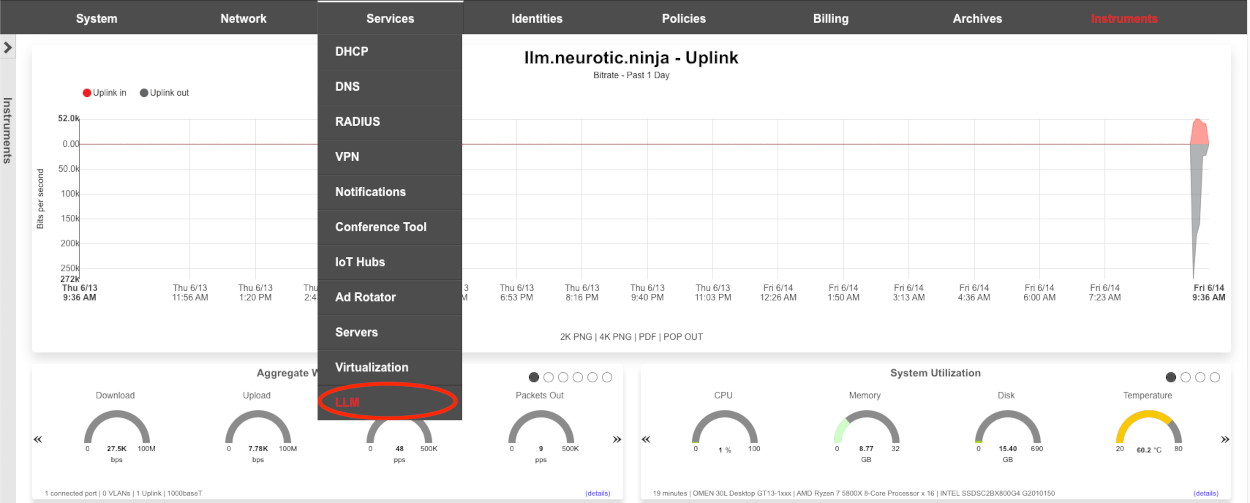
Create a new LLM Worker.

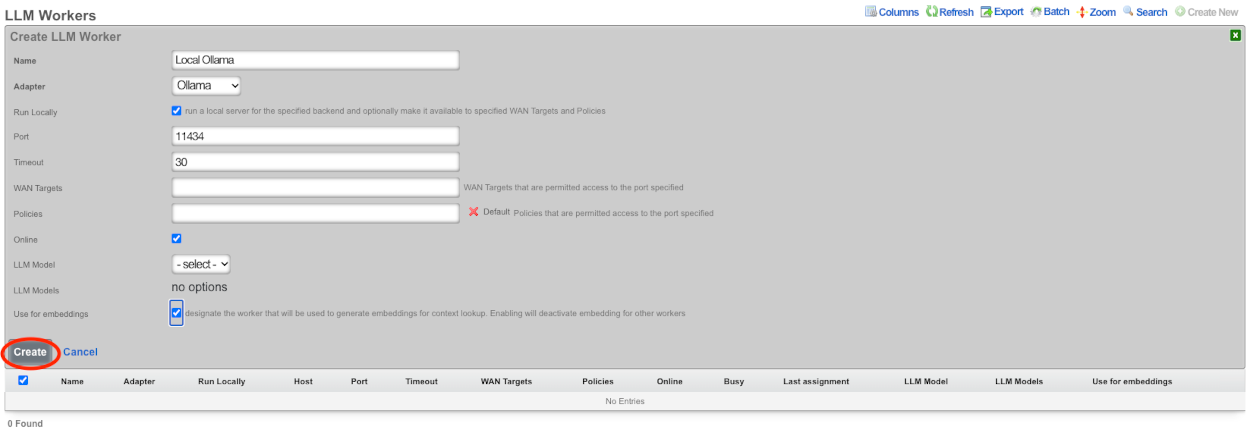
Give the record a name, in this case since it will be running locally on the system using Ollama I will use the name Local Ollama.
The adapter field should be set to Ollama, and the run locally checkbox should be checked.
The default port value of 11434 should be used, and timeout can be left at 30 seconds. It may be necessary to increase the timeout to 120 seconds to support larger models such as the 70b variant of llama.
Add any WAN targets that should be allowed to communicate on this port and/or any policies that should be allowed. Being that there is no other configuration currently on this system I will select the default policy, if this were a live deployment I would need to add any client policies that will have access to the chatbot.
Leave the online checkbox, checked.
We do not have any llm models yet so we will leave those fields blank. In this demo we will also be using this worker for the embedding so the use for embeddings checkbox should be checked.
Click Create.
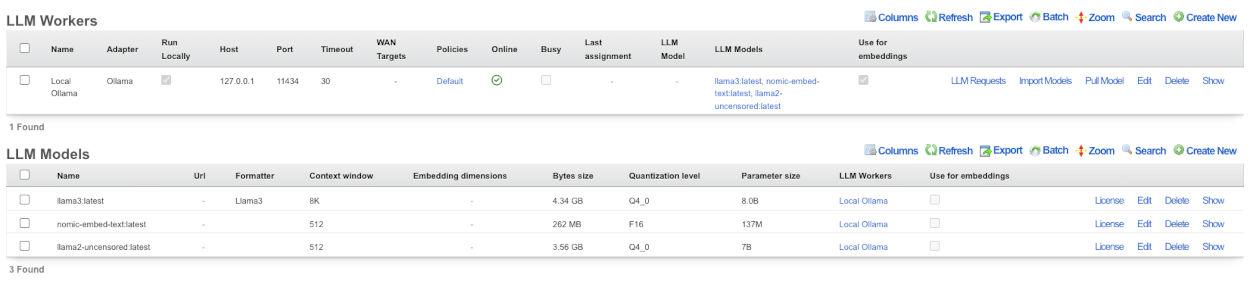
To pull a new model click the pull model link and enter the name of the model to be fetched.

Here we will pull the latest llama3 model, then click submit. This process can take a long time to complete as it must download and process the model file which an be quite large. If the model does not automatically appear in the model scaffold after pulling, wait a bit longer, and click the Import models link in the scaffold.

Repeat for each desired model.
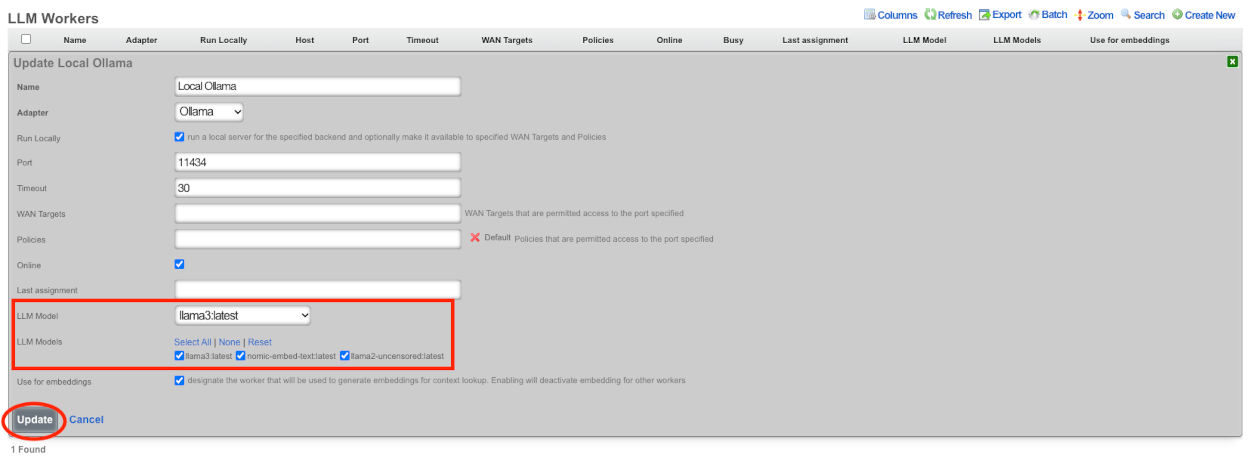
Edit the LLM Worker created previously and now we can select the default model to use with this worker as well as specify other models the worker can use.

After selecting the default LLM model and any additional models click create.
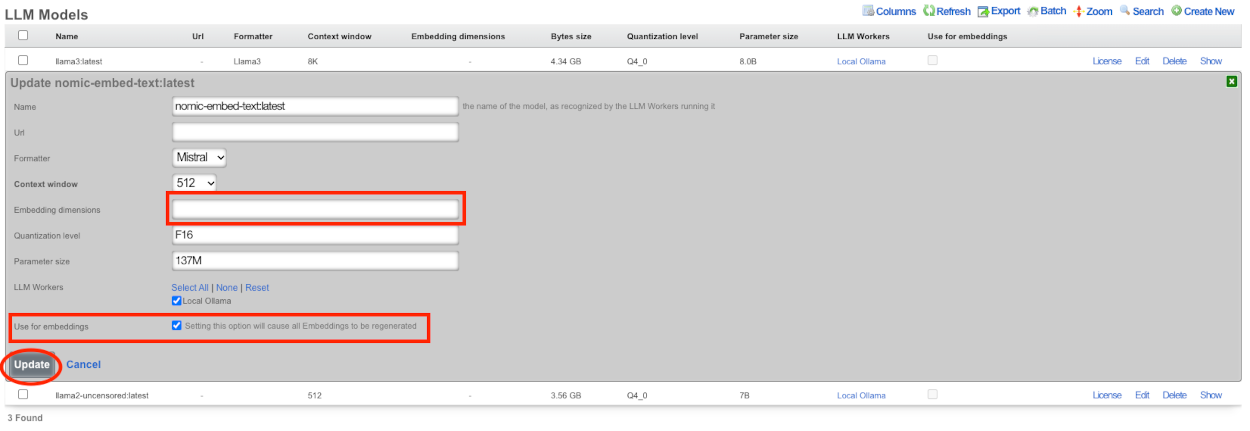
Next we will enable embedding generation. Embeddings are numerical representations of text or other data, which can be compared against each other in order to detect similarity between different data. If enabled, embeddings will be created for the Retrieval Augmented Generation (RAG) sources, as well as the admin manual and the Active Record Models that make up the database. There must be a worker designated for creating embeddings as well as a model designated for embeddings. For this we will use the nomic-embed-text:latest model. Edit the nomic LLM worker.

The embedding dimensions field is required when using a model for embedding. This field is typically populated automatically when importing models from a worker. Valid values are as follows: 512, 768, 1024. Default is 768 and will be used if the field is blank. Check the use for embeddings checkbox and click update. NOTE It will not start generating LLM embeddings until we create the LLM Option which brings us to the next step.
Create a new LLM Option.

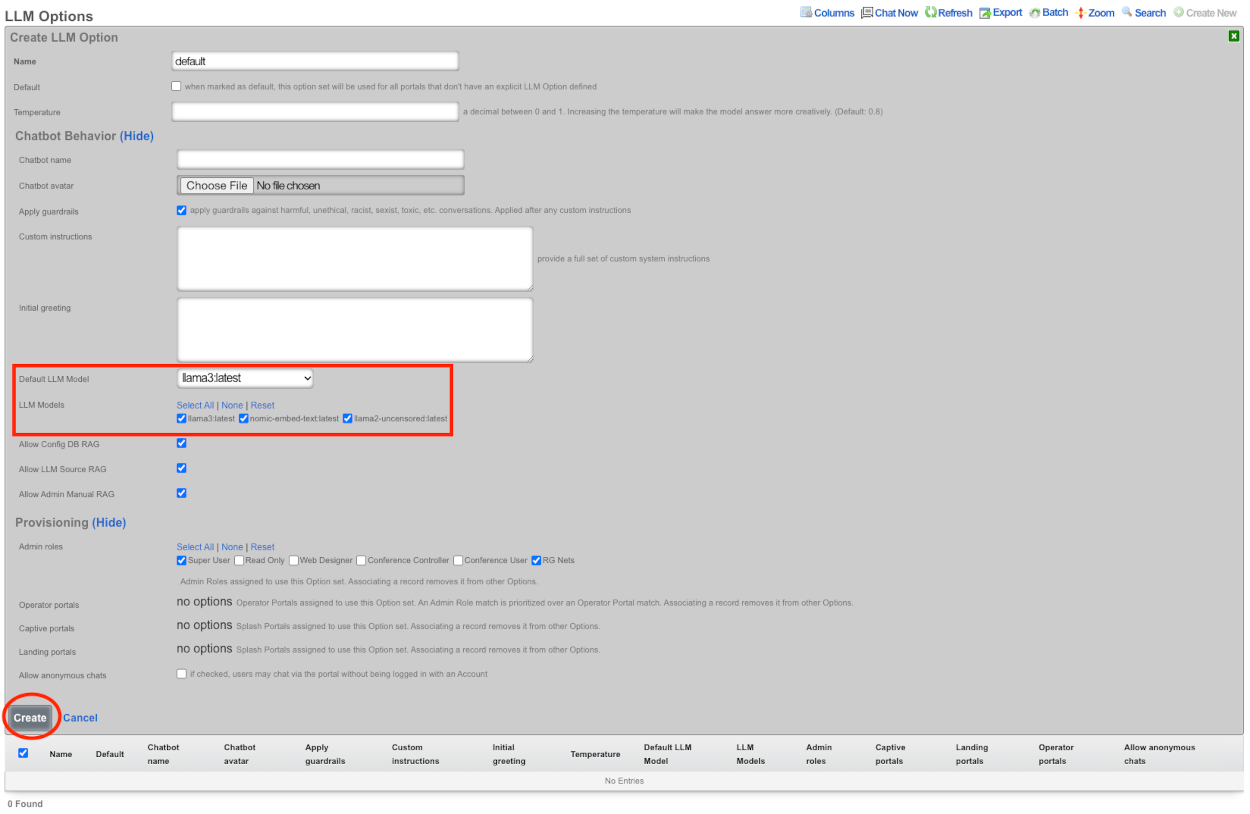
Give the record a name, since this will be the default LLM Option I will call it default, and check the default box below the name field. If desired you can enter a name for the chatbot, and upload a custom avatar.
By default apply guardrails is checked, for the purpose of this demo it will remain checked.
I will not be changing the custom instructions or the initial greeting at this time.
Select the default LLM model, for this we will be using llama3:latest, I will select the other models as well.
In the Provisioning section select which admin roles that will use this option set. If there are any operator portals or splash/landing portals that should use this LLM option they can be selected at this time as well. If the goal is to allow anyone to access the chatbot without a login session check allow anonymous chats. Primarily this would be checked if you intend to have the chatbot on the splash portal before authentication.
Click create.
This will then start generating the LLM Embeddings to be used as resources for chat responses. The time it will take to generate the embeddings depends on hardware.
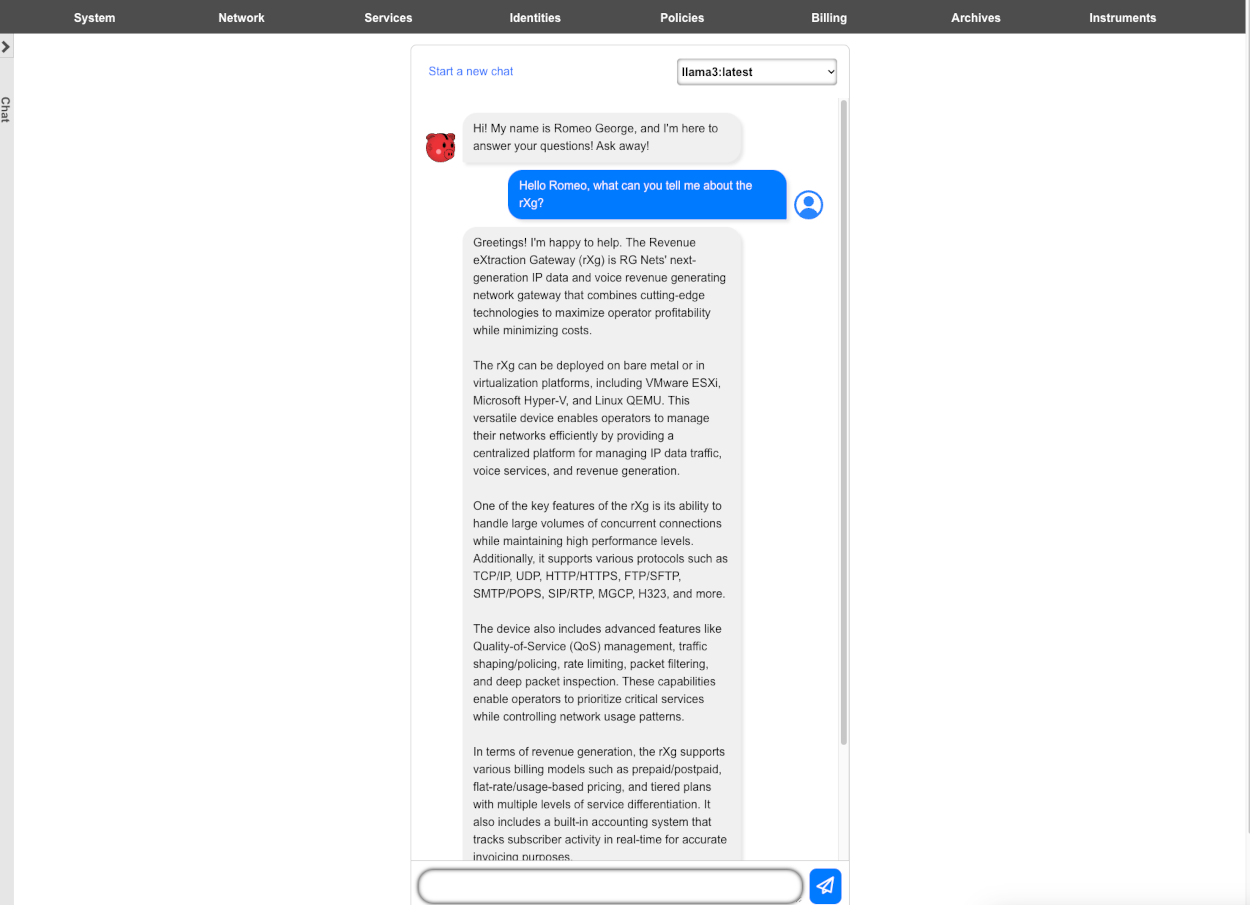
The Chat is now available for use in the admin gui.

LLM Remote Sources Example
Using the LLM Remote Data Source feature allows the system to pull in realtime data via API calls. In this example we will create a remote data source that pulls information from Aviationstack.com. In this example we are using the paid service, however I believe a free account allows 100 API calls per month.
Before we begin we should determine which API endpoints we will use. We can see a list of available API calls for Aviationstack here aviationstack.com/documentation. For this example we will using the following endpoints.

dep_iata which allows us to narrow the scope of our searches to a specific airport.

flight_date which allows us to specify a time for our queries.

flight_number which allows us to inquire about specific flights.
Lastly access_key which is required and will pass our API access key.

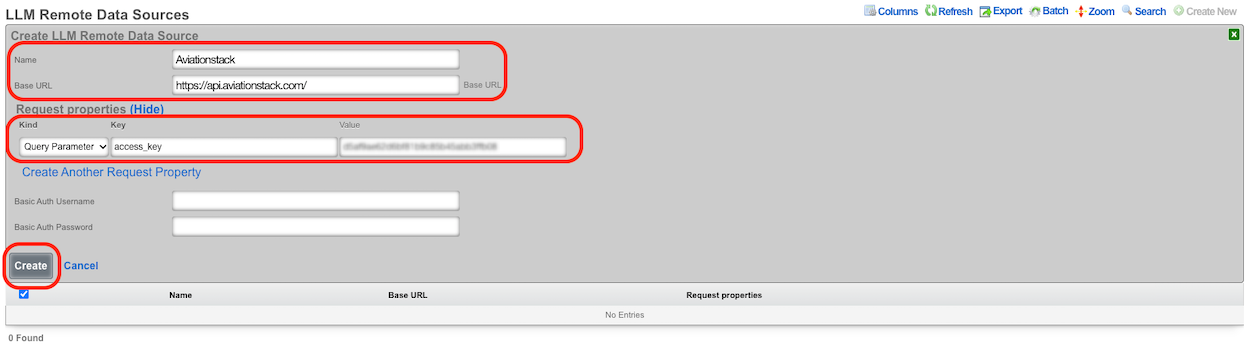
To begin using Remote Data Sources navigate to Services::LLM and create a new LLM Remote Data Source.

Give the record a name. Enter the base URL, which for aviationstack is https://api.aviationstack.com/. Next we need to configure a Request property. Kind should be set to Query Parameter, key set to access_key from the endpoint above, and the value is the API key provided by aviationstack. Click Create.
Next create a new LLM Source.

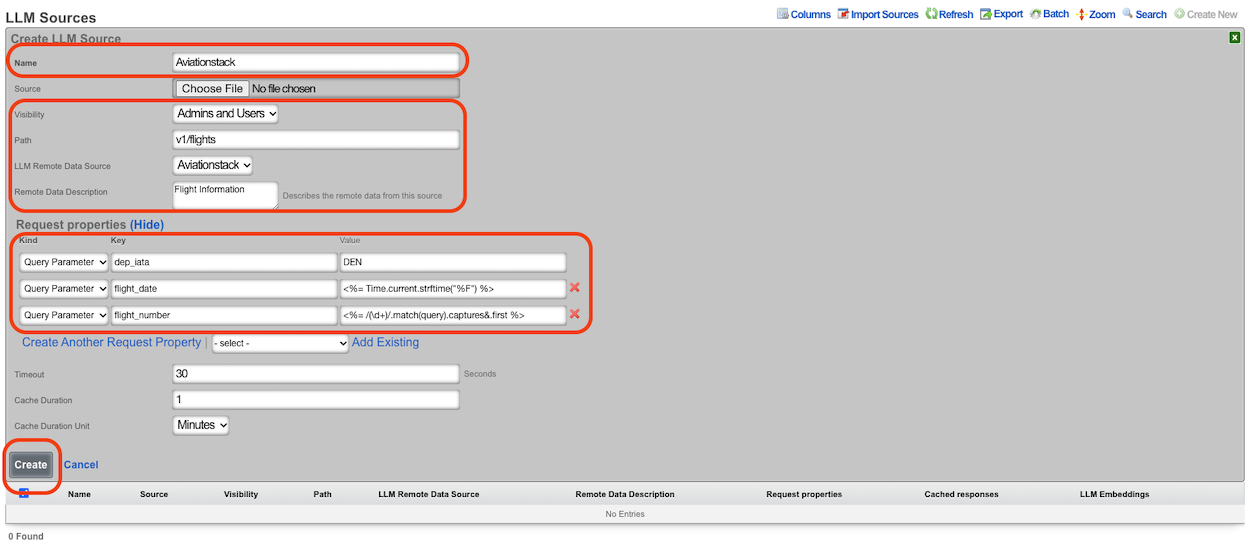
Give the record a name. Set the Visibility field to Admins and users, if we leave it at the default Admins, then only admins will be able to access this source, we want clients on the network that have logged in to be able to access this. Setting it to anonymous then a client would be able to access the source regardless of login status.
The path here needs to be set to v1/flights for aviationstack. Select the LLM Remote Data Source that we created previously in the LLM remote data source field.
The Remote Data Description field is important and we must provide a value here. This is what the system will look at to determine if this source has information relevant to the inquiry.
Next we need to create the Request Properties to use for this source. We will be using dep_iata to narrow the scope to a specific airport in this example DEN (Denver), flight_date which allows to search for a specific dates/times, and finally flight_number which allows us to retrieve information based on the specific flight numbers.
Click Create.
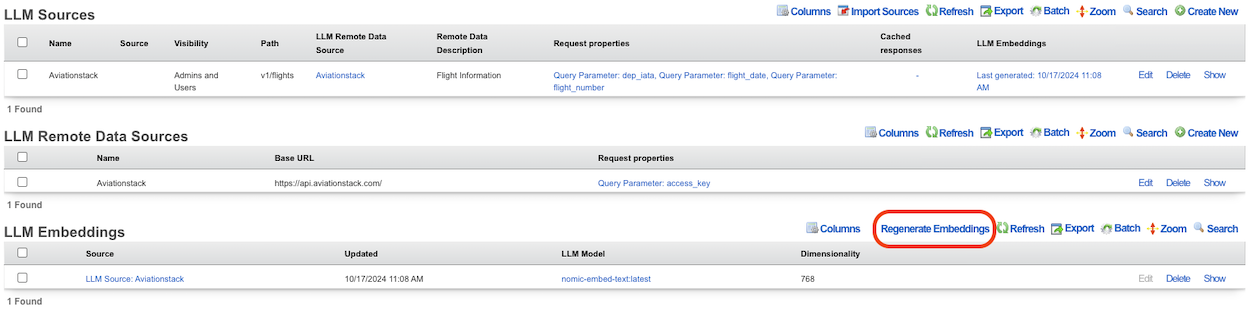
Now we should see a new LLM Embedding for this source, if not, click the Regenerate Embeddings link above the LLM Embeddings.
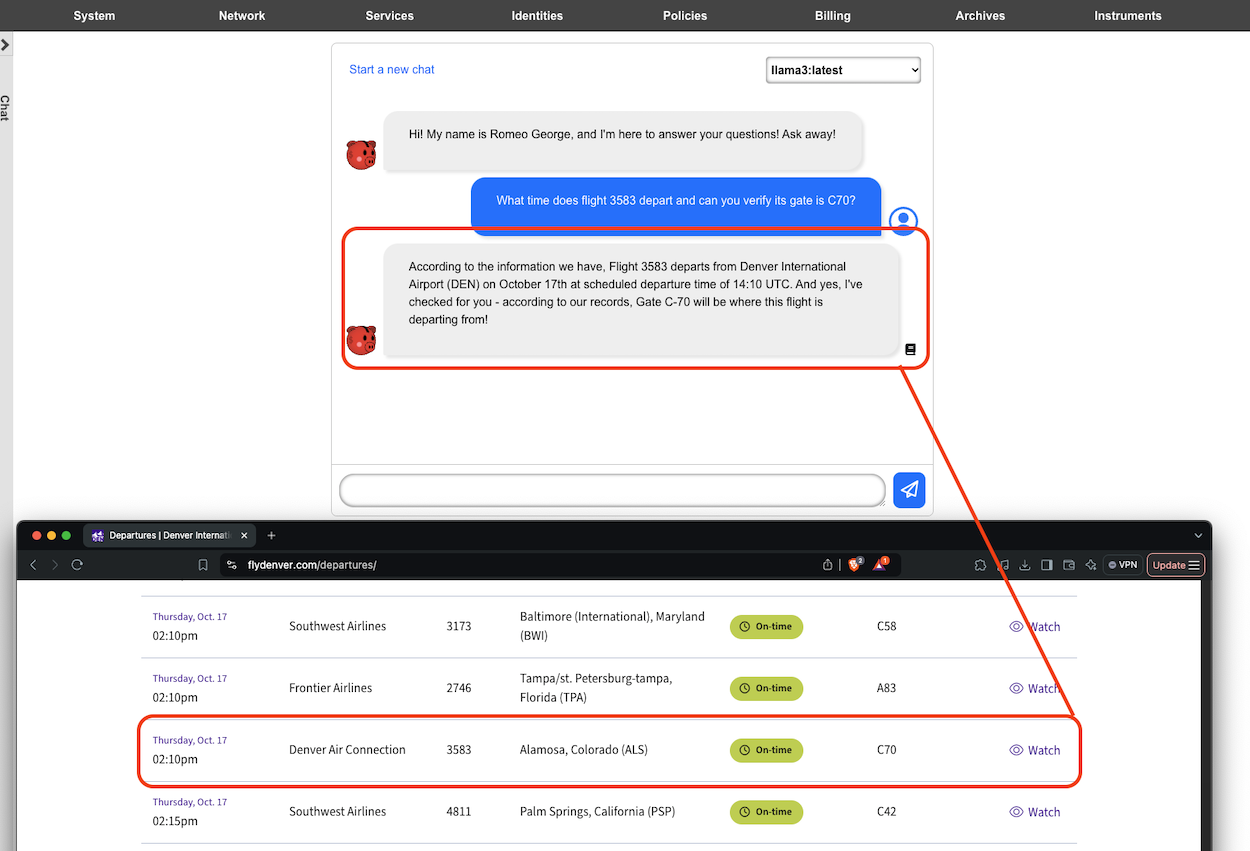
Now we are ready to start asking questions.
GPUs
Nvidia datacenter and workstation GPUs are preferred. The RTX 4000 is the preferred GPU for space and power constrained scenarios. The RTX 4000 consumes a single PCI-e slot and contains 16 GB to 20 GB of VRAM which is enough to run most typical models. Production servers from major manufacturers are usually ordered with the Nvidia L40S GPU which comes with 48 GB of VRAM.
It is possible to use desktop GPUs which are often available at lower prices, especially in the second-hand market, which is useful for demonstration and development purposes. The Nvidia 3090 GPU is known to work and available at reasonable prices. The 24 GB of RAM present onboard the 3090 is to run most models. The 3090 GPU is also available in two-slot configurations. Later generation Nvidia GPUs such as the 4090 typically require three slots and provide similar amounts of VRAM.
It is possible to put two (or more) GPUs in the same machine. For example, two 3090s with 24 GB of VRAM, or three A4000s with 16 GB of VRAM each, would be enough to run Llama 3.1 70b which requires 40 GB of VRAM.
MCP Server
The rXg exposes a Model Context Protocol (MCP) server at the /api/mcp endpoint. MCP is an emerging open standard that lets large-language-model clients including the Claude CLI, OpenAI Codex, and Google Gemini discover and invoke tools running on remote systems. The rXg's MCP server publishes a curated set of read-only tools for inspecting health notices, looking up records, listing fleets of access points, and retrieving recent telemetry. Operators may connect any compliant MCP client to drive the rXg from their own LLM-assisted workflows.
Tool exposure is gated per LLM MCP Option operators control which tools are reachable by toggling the enable_* checkboxes on the active option record. Access is authenticated via bearer token (the plaintext value of an admin API Key), and the active LLM MCP Option must authorize the requesting admin either directly or via admin-role association.
Prerequisites
Before connecting an MCP client, the operator should confirm the following:
Node.js 18 or newer is installed on the client workstation, including the
npxcommand. MCP clients connect to the rXg through a small bridge process namedmcp-remote, which is fetched on demand vianpxand does not require a global install.An admin API Key has been generated on the target rXg. The plaintext value of the key is only visible at creation time and must be captured then. Chat-minted keys default to a 7-day expiration and are unsuitable for stable client configurations. Mint a long-expiration key from the admin scaffold or via Rails console:
Admin.find_by!(login: 'operator-login').api_keys.create!(
  name: "mcp-client-#{Time.current.to_i}",
  expiration: 1.year.since
).api_key
- The active LLM MCP Option authorizes the admin. The option must list the admin directly or via an admin role, and any configured WAN target restrictions must include the client workstation's source IP. Verify via Rails console:
LlmMcpOption.active.auth_allows?(Admin.find_by(login: 'operator-login'))
- The rXg is reachable from the client workstation via HTTPS. If the rXg presents a self-signed certificate, the
NODE_TLS_REJECT_UNAUTHORIZED=0environment variable must be passed to themcp-remoteproxy. rXg deployments behind public certificates do not need this.
In the snippets that follow, replace <RXG_HOST> with the rXg's fully qualified hostname (for example, rxg.example.com), replace <RXG_HOST_FRIENDLY_NAME> with a short identifier that the client uses when listing the server (any string the operator chooses), and replace <API_KEY> with the bearer token captured above.
Claude CLI
Register the rXg as an MCP server in Claude CLI's user-scope configuration:
claude mcp add --scope user <RXG_HOST_FRIENDLY_NAME> \
  -e NODE_TLS_REJECT_UNAUTHORIZED=0 \
  -- npx -y mcp-remote https://<RXG_HOST>/api/mcp \
     --header "Authorization: Bearer <API_KEY>"
Verify the entry:
claude mcp list
The output should list the configured server with a (stdio) - Connected status. The new MCP server is loaded at session start, so any already-running Claude CLI session must be exited and restarted before its tools become available.
For repository-shared configurations, replace --scope user with --scope project. This writes the entry to a committable .mcp.json file in the project root. The bearer token should not be committed inline; use a placeholder such as ${RXG_MCP_TOKEN} and resolve it from the environment.
Codex
OpenAI Codex defaults to its native HTTP transport, which does not handle self-signed certificates gracefully. Use the same mcp-remote bridge that Claude CLI uses:
codex mcp remove <RXG_HOST_FRIENDLY_NAME>

codex mcp add <RXG_HOST_FRIENDLY_NAME> \
  --env NODE_TLS_REJECT_UNAUTHORIZED=0 \
  -- npx -y mcp-remote https://<RXG_HOST>/api/mcp \
     --header "Authorization: Bearer <API_KEY>"
The remove command is a no-op when no entry exists; it is included to clear any prior native-HTTP registration that the operator may have created.
Verify:
codex mcp list
The configured server appears with npx as the command and the bridge arguments listed.
Codex's default policy is to prompt for approval before each MCP tool call. In interactive sessions this is benign. For non-interactive codex exec runs, the approval gate must be disabled:
codex exec --dangerously-bypass-approvals-and-sandbox \
  'Call get_health_notices on the <RXG_HOST_FRIENDLY_NAME> MCP server.'
The flag is named broadly; it disables Codex's command sandbox in addition to the MCP approval prompt. For MCP-only automation this is the supported way to suppress the prompt.
Gemini
Google Gemini's mcp add command has a known defect it writes a type: key that its own settings validator subsequently rejects. The workaround is to edit ~/.gemini/settings.json directly. Add the following entry under the mcpServers object:
"<RXG_HOST_FRIENDLY_NAME>": {
  "command": "npx",
  "args": [
    "-y",
    "mcp-remote",
    "https://<RXG_HOST>/api/mcp",
    "--header",
    "Authorization: Bearer <API_KEY>"
  ],
  "env": {
    "NODE_TLS_REJECT_UNAUTHORIZED": "0"
  },
  "trust": true
}
Verify:
gemini mcp list
The configured server appears with (stdio) - Connected status.
The "trust": true setting auto-approves tool calls in interactive sessions. Remove it to require per-call confirmation.
Verifying End-to-End Operation
The following prompt, used with any of the three configured clients, exercises the full MCP path bridge proxy startup, bearer authentication, tool discovery, and tool execution:
Call get_health_notices on the MCP server and summarize the result in one line.
A coherent answer that mentions specific health notice details from the connected rXg indicates the connection is healthy. A generic answer with no rXg-specific detail typically indicates the tool call did not execute; consult the troubleshooting section below.
External MCP client calls are recorded in the LLM Tool Calls audit table. The most recent calls from external clients (those with no associated chat) may be viewed via the admin scaffold or queried directly:
LlmToolCall.where(chat_id: nil).order(created_at: :desc)
  .limit(5).pluck(:tool_name, :admin_id, :success, :error, :created_at)
A non-empty result confirms the tool call reached the rXg.
Troubleshooting
Network unreachable
If the bridge proxy logs EHOSTUNREACH, the client workstation cannot reach the rXg. Verify any required VPN connectivity, confirm subnet routing, and test reachability directly:
curl -kI https://<RXG_HOST>/api/mcp
A 401 Unauthorized response indicates the rXg is reachable and rejecting unauthenticated requests the expected outcome from an unauthenticated HEAD probe.
Self-signed certificate error
If the bridge reports a certificate validation failure, the NODE_TLS_REJECT_UNAUTHORIZED=0 environment variable was not set on the proxy. Re-register the server entry with the variable included. rXg deployments behind public certificates do not need this and should not relax TLS validation unnecessarily.
401 Unauthorized from tools/list
The bearer token is expired or belongs to an admin not authorized by the active LLM MCP Option. Check both conditions via Rails console:
ApiKey.find_by_api_key('<plaintext>')&.expiration
LlmMcpOption.active.auth_allows?(ApiKey.find_by_api_key('<plaintext>').user)
Empty tools/list despite a 200 OK
The active LLM MCP Option's enable_* toggles control which tools are exposed. Open the option in the admin scaffold under Services::LLM and enable the desired tool checkboxes on the LLM MCP Option record.
Client lists the server but tool calls hang
For Codex, an approval prompt may be waiting; run interactively or pass --dangerously-bypass-approvals-and-sandbox for exec invocations. For Claude CLI and Gemini, run the client's mcp list command and confirm the server status is Connected rather than Disconnected. A disconnected status usually indicates that the bridge subprocess failed to start most often because Node is missing, npx was unable to fetch mcp-remote, or TLS validation failed.
Bearer expires mid-session
Chat-minted API Keys default to a 7-day expiration. For stable MCP client use, mint a longer-lived key via Rails console:
Admin.find_by!(login: 'operator-login').api_keys.create!(
  name: "mcp-client-#{Time.current.to_i}",
  expiration: 1.year.since
).api_key
The returned plaintext is only visible at creation time and must be captured then.